Academic Company Events NI Developer Zone Support Solutions Products & Services Contact NI MyNI
1 ratings:
 2 out of 5     Rate this Document

Programming NI-DAQ in Visual C++ 6.0

Primary Software: Driver Software>>NI-DAQ
Primary Software Version: 6.9.1
Primary Software Fixed Version: N/A
Secondary Software: Measurement Studio>>Visual C++ Support

Problem:
What options do I have when programming NI-DAQ in Visual C++ 6.0?

Solution:
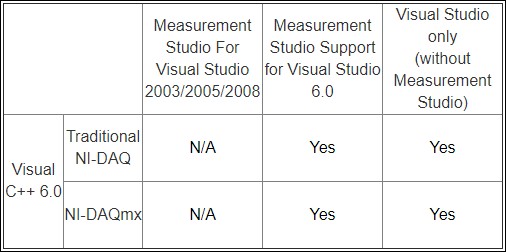
Refer to the following table when using Visual C++ 6.0 and the DAQ driver (Traditional or DAQmx ) to determine if you can create a NI-DAQ application, whether you have Measurement Studio or not. You can follow the links on the table itself or use the links at the bottom of the page for more information about options with other languages and environments. 
 
  • Measurement Studio for the Visual Studio 2003/2005/2008 environments provides a collection of managed .NET and MFC C++ libraries for advanced analysis, scientific user interface controls and measurement data networking. It also provides code generation and integration tools with Visual Studio. Refer to the Measurement Studio for Visual Studio 2003/2005/2008 column if you are developing a NI-DAQ application using Visual Studio 2003/2005/2008 and you have Measurement Studio 7.0 or later.

  • Measurement Studio Support for Visual Studio 6.0 provides Visual Basic 6.0 ActiveX controls, MFC Visual C++ libraries for advanced analysis, scientific user interface controls, and measurement data networking. It also provides integration tools for use with Visual C++ 6.0 and Visual Basic 6.0. This support is available as a part of Measurement Studio 7.0 ( Professional package or higher ). Refer to this column if you are developing a NI-DAQ application using Visual Basic 6.0 or Visual C++ 6.0 and you have Measurement Studio Support for Visual Studio 6.0 installed. This was previously available as Measurement Studio 6.0.

  • Visual Studio only (without Measurement Studio) refers to the development options if you have only Visual Studio and no Measurement Studio packages. This means you use Visual Studio 6.0 for developing DAQ applications with Visual C++ 6.0.
  Measurement Studio For Visual Studio 2003/2005/2008 Measurement Studio Support for Visual Studio 6.0 Visual Studio only
(without Measurement Studio)
Visual C++ 6.0 Traditional NI-DAQ N/A Yes Yes
NI-DAQmx N/A Yes Yes
YES: Native components are provided for this purpose and shipping examples are included.
N/A: The particular Measurement Studio package does not provide support for the particular language. Refer to the link for more information.

Visual C++ 6.0 with Measurement Studio Support for Visual Studio 6.0

  1. Traditional NI-DAQ

    • National Instruments does not include native C++ class libraries for Traditional NI-DAQ.
    • Use the ANSI C API that is available by installing the Traditional NI-DAQ driver. This does not require Measurement Studio.
    • You can find the examples in the following default directory location : C:\Program Files\National Instruments\NI-DAQ\Examples\VisualC. You can view these examples after installing the Traditional NI-DAQ driver.
    • You can use the Traditional NI-DAQ ActiveX controls to perform data acquisition. The ActiveX controls are provided with the Traditional NI-DAQ driver and do not require Measurement Studio. The CWDAQ control is installed as a part of the Traditional DAQ driver.

  2. NI-DAQmx

    • Measurement Studio Support for Visual Studio 6.0 will not provide you any additional functionality for developing DAQmx applications in Visual Studio 6.0.
    • National Instruments provides a C API for DAQmx. Use the ANSI C API that is available by installing the Traditional NI-DAQ driver. This does not require Measurement Studio. Refer to the Visual C++ 6.0 without Measurement Studio section for more information.
    • You can find examples in the following default directory location: C:\Documents and Settings\All Users\Documents\National Instruments\NI-DAQ\Examples\DAQmx ANSI C. These examples were created using Visual C++ 6.0, and are available by installing the NI-DAQmx driver. Measurement Studio is not required. Note: These examples are the same examples referred to in the Visual C++ 6.0 without Measurement Studio section.
    • To manually add the NI-DAQmx libraries to a Visual C++ 6.0 project, complete the following steps:
      1. Select Tools»Options»Projects »Directories. From the pulldown menu on the right side, you can select different directories to look in for include and library files.
      2. Add the following path for include files: C:\Program Files\National Instruments\NI-DAQ\DAQmx ANSI C Dev\include
      3. Add the following path for the library file: C:\Program Files\National Instruments\NI-DAQ\DAQmx ANSI C Dev\lib\msvc
         

Visual C++ 6.0 with Measurement Studio for Visual Studio 2003 or later

  1. Traditional NI-DAQ

    • Measurement Studio Support for Visual Studio 2003/2005/2008 will not provide you any additional functionality for developing Traditional NI-DAQ applications using Visual C++ 6.0.
    • Measurement Studio for Visual Studio .NET Professional package or higher includes a separate CD that installs support for Visual Studio 6.0. This provides project wizards, data networking, Analysis C++ class libraries, and ActiveX user interface controls you can use from Visual C++ 6.0. If you have Measurement Studio for Visual Studio 2003/2005/2008 Professional package or higher, refer
      to the Visual C++ 6.0 with Measurement Studio Support for Visual Studio 6.0 section .

  2. NI-DAQmx

Visual C++ 6.0 without Measurement Studio

  1. Traditional NI-DAQ

    • National Instruments does not include native Visual C++ class libraries for Traditional NI-DAQ.
    • You can find examples at the following default directory: C:\Program Files\National Instruments\NI-DAQ\Examples\VisualC. These examples are provided examples for Visual C++ 6.0 without Measurement Studio. To compile and run the examples, follow these instructions:

      1. Open Microsoft Visual C++.
      2. Select File»Open.
      3. Navigate to the following path: C:\Program Files\National Instruments\NI-DAQ\Examples\VisualC.
      4. Open the specific .c file you are interested in running. The .c file will open in the window, but it will not be inside a project.
      5. Select Build»Rebuild All.
      6. Select Yes in the popup window that asks you if you would like to build a default workspace. A default workspace will open.
      7. Add the specific .c file to the project. The .c file will automatically compile, but you will probably have a few linking errors. This is because the .lib files have not been added to the project.
      8. Switch to the File View from the Class View.
      9. Right-click on Project name files, and select Add files to project.
      10. Navigate to the following path: C:\Program Files\National Instruments\NI-DAQ\Lib.
      11. Select All Files for the Files of Type field.
      12. Select both nidaq32.lib and nidex32.lib.
      13. After adding these .lib files to the project, select Build»Rebuild All. The project should compile without any compile or linking errors. Execute the program and view the results.
      14. If you still encounter errors,
        1. Select Tools»Options from the menu, then click on the Directories tab. You will find a list box labeled Show directories for: . First select Include files and enter the directory to your include .h files. The default installation path is shown below.
          C:\Program Files\National Instruments\NI-DAQ\include
          (Hint: If you want to browse for your files, simply double click in the space below the last file path in the list. This will highlight the area and show an ellipsis at the right-hand side. Click on the ellipsis and navigate to your file.)
        2. Next select Library Files in the Show Directories for: list box and add the path to the library file. The default installation path is C:\Program Files\National Instruments\NI-DAQ\lib\. Click OK after adding the file paths.
        3. Build»Rebuild All. The project should compile without any compile or linking errors. Execute the program and view the results.

    • You can use the Traditional NI-DAQ ActiveX controls to perform data acquisition. The CWDAQ ActiveX control is provided with the Traditional NI-DAQ driver and does not require Measurement Studio.

  2. NI-DAQmx

    • You can find examples at the following default directory location: C:\Program Files\National Instruments\NI-DAQ\Examples\DAQmx ANSI C. Open and run these examples with the following steps:

      1. Open Visual C++.
      2. Select File»Open.
      3. Navigate to the following path: C:\Documents and Settings\All Users\Documents\National Instruments\NI-DAQ\Examples\DAQmx ANSI C.
      4. Select which type of example you want to run and double-click the workspace.
      5. The first time you run these examples, you will need to add the DAQmx include and library files to the Visual Studio environment. Select Tools»Options.
      6. Click the Directories tab. Make sure you are viewing the directories for include files, and add the following new path: C:\Program Files\National Instruments\NI-DAQ\DAQmx ANSI C Dev\include.
      7. Add a link for library files with the following path: C:\Program Files\National Instruments\NI-DAQ\DAQmx ANSI C Dev\lib\msvc.


Related Links:
Developer's Zone: Text Based NI-DAQmx Examples
KnowledgeBase 317742FQ: Programming NI-DAQ in Text-Based Languages
KnowledgeBase 3146J6FQ: Programming NI-DAQ in Visual Basic 6.0
KnowledgeBase 3178NEFQ: Programming NI-DAQ in Visual Basic .NET
KnowledgeBase 317CP7W3: Programming NI-DAQ in Visual C++ MFC
KnowledgeBase 3186P9W3: Programming NI-DAQ in Visual C# .NET

Attachments:


Report Date: 11/14/2008
Last Updated: 12/10/2008
Document ID: 4RDBIAXK

Your Feedback! poor Poor  |  Excellent excellent   Yes No
 Document Quality? 
 Answered Your Question? 
  1 2 3 4 5
Please Contact NI for all product and support inquiries.submit